CEATEC 2026 / Exhibitor Only Site
QR Code Scanning App (PWA) — Quick Install Guide
Before you start: a PC is required for logging in
https://exb.jesa.or.jp/ceatec/admin/ex-mg-signon-pwa
You can complete the installation (steps 1–3) with this sheet alone. For logging in (steps 4–6), open the page above on a PC.
Installation First time only. Repeat for each device.
1
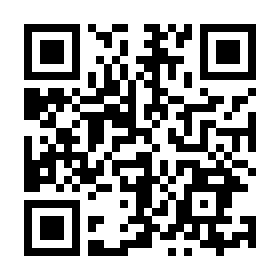
Scan the installation QR code on the right with your phone camera
Use your phone's standard camera app. The installation page opens. (The same QR code is shown in STEP 1 on the PC screen.)
2
Add it to your home screen
iOS 26 or later (Safari) Tap "…" at the bottom right → "Share" → "See More" → "Add to Home Screen"
iOS 25 or earlier (Safari) Tap the Share icon at the bottom centre → "Add to Home Screen" → "Add"
Android (Chrome) Menu → "Add to Home screen" or "Install app" → "Install"
* You cannot add it from private (incognito) mode.
iOS 25 or earlier (Safari) Tap the Share icon at the bottom centre → "Add to Home Screen" → "Add"
Android (Chrome) Menu → "Add to Home screen" or "Install app" → "Install"
* You cannot add it from private (incognito) mode.
3
Launch it from the home screen icon
Do not launch it from a browser tab. On iOS the login session would be separated.
★ You cannot scan yet. You must continue to step 6 and log in.
★ You cannot scan yet. You must continue to step 6 and log in.
Logging in You may need to do this again during the show.
4
Tap "Login in English"
You cannot change the language after logging in.
5
Enter a device name and tap "Register"
Use a name you can identify later, such as "Reception A" or "Tanaka iPhone". It appears in the CSV. Once registered, the camera starts automatically.
6
Scan the login QR code on the PC with that camera
It is shown in STEP 6. Once scanned, the TOP screen appears and you are logged in.
Test scan Getting this far before the show saves trouble on the day.
7
Allow camera access and scan one badge
Tap [QR Code Reader] on the TOP screen → Allow camera access → scan this year's visitor badge QR code. If the result appears, you are ready.
8
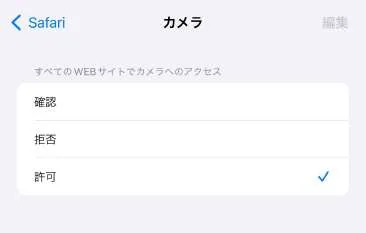
If you are asked for camera permission every time (iPhone)
iOS Settings → Safari → Camera → set "Camera Access on All Websites" to "Allow".
Three things that trip people up on site
1The "installation" QR code (STEP 1) and the "login" QR code (STEP 6) are different. Please do not mix them up.
2The login QR code is valid until 18:00 on Friday, 16 October 2026. The same QR code works until then, so you may print it and hand it to your on-site staff (the expiry is also shown on the Exhibitor Only Site). Please avoid leaving it on display where third parties can see it.
3Make sure you can log in to the Exhibitor Only Site at the venue as well. A session lasts 168 hours once you log in, but it may expire during the show and require logging in again.
For survey setup, CSV downloads and other details, see the operation manual https://exb.jesa.or.jp/ceatec/common/manual/ceatec_pwa/en/